Step 1: After logging in, click the gear icon in the top right corner and then click Options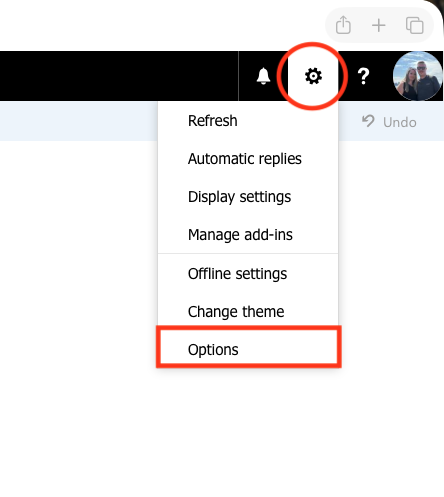
Step 2: Click on General, then My Account on the left hand side of your screen, then click on change password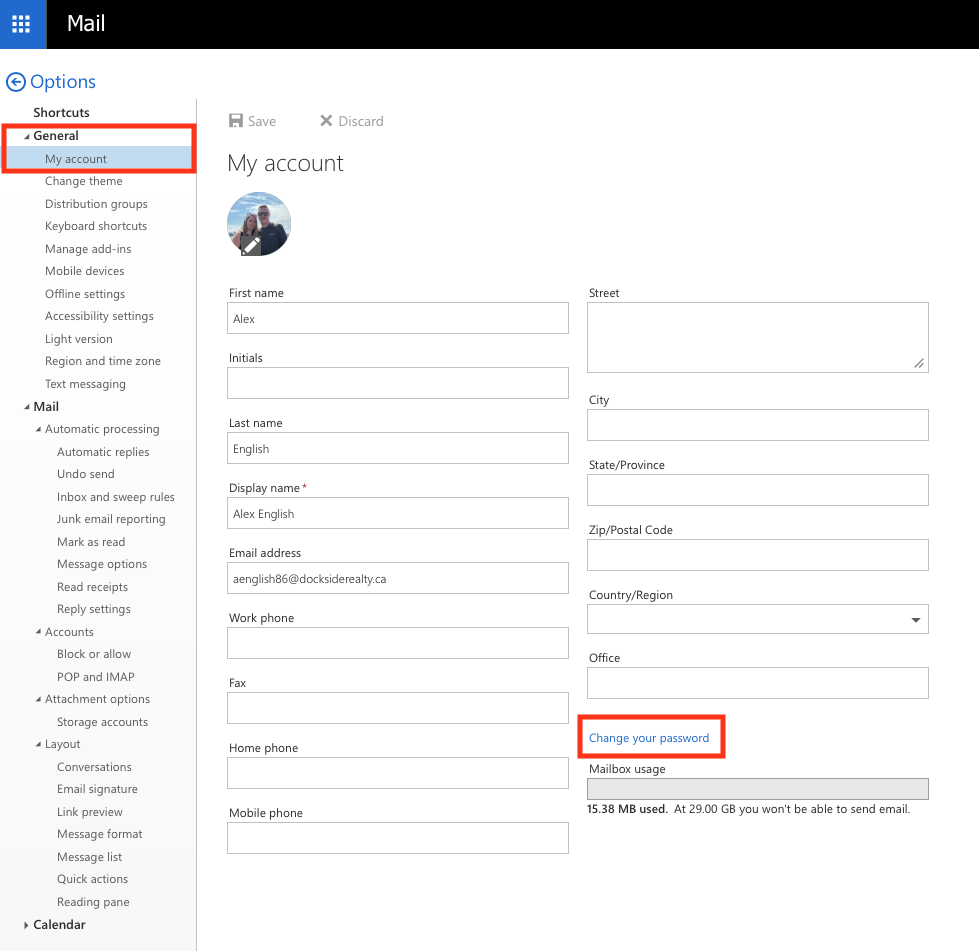
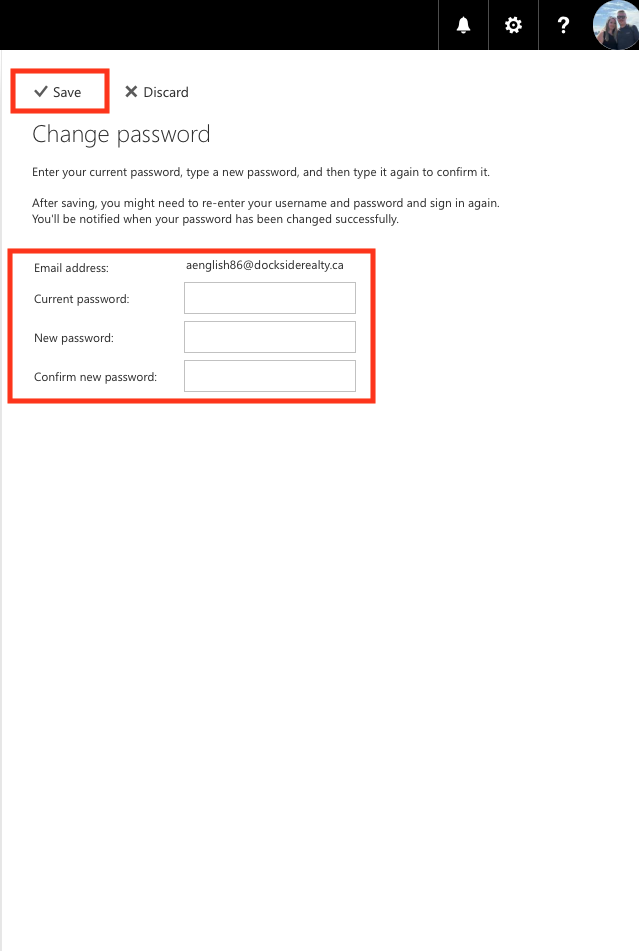
Step 3: Enter your old password, then your new password twice to make sure it is correct, then click save. Your password is now updated. If you have installed the outlook app on your iPhone/Android device or have setup email on your computer, you will need to update the password on those devices to continue to access your account