
Step 1: Open the app and click add account, then put in your company email address as shown, then click add account: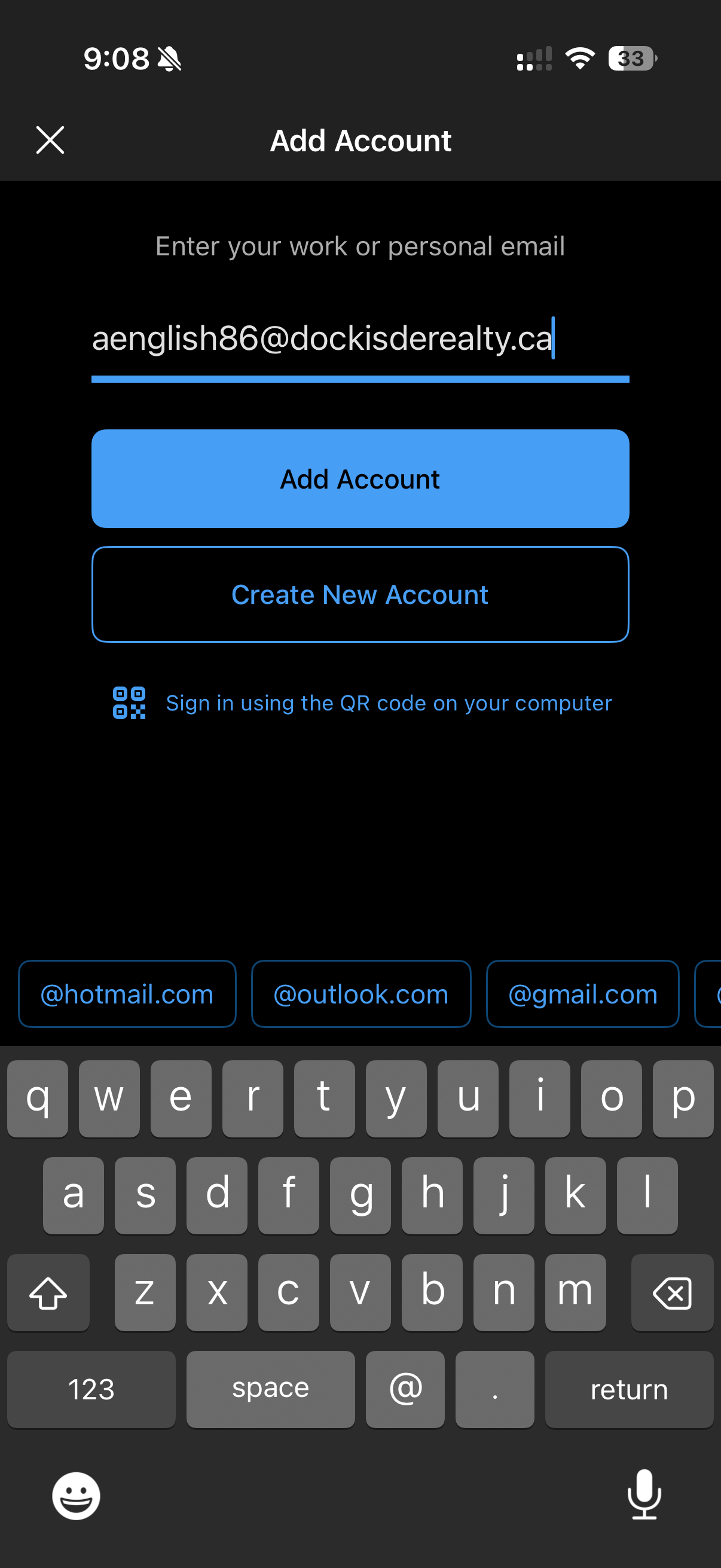
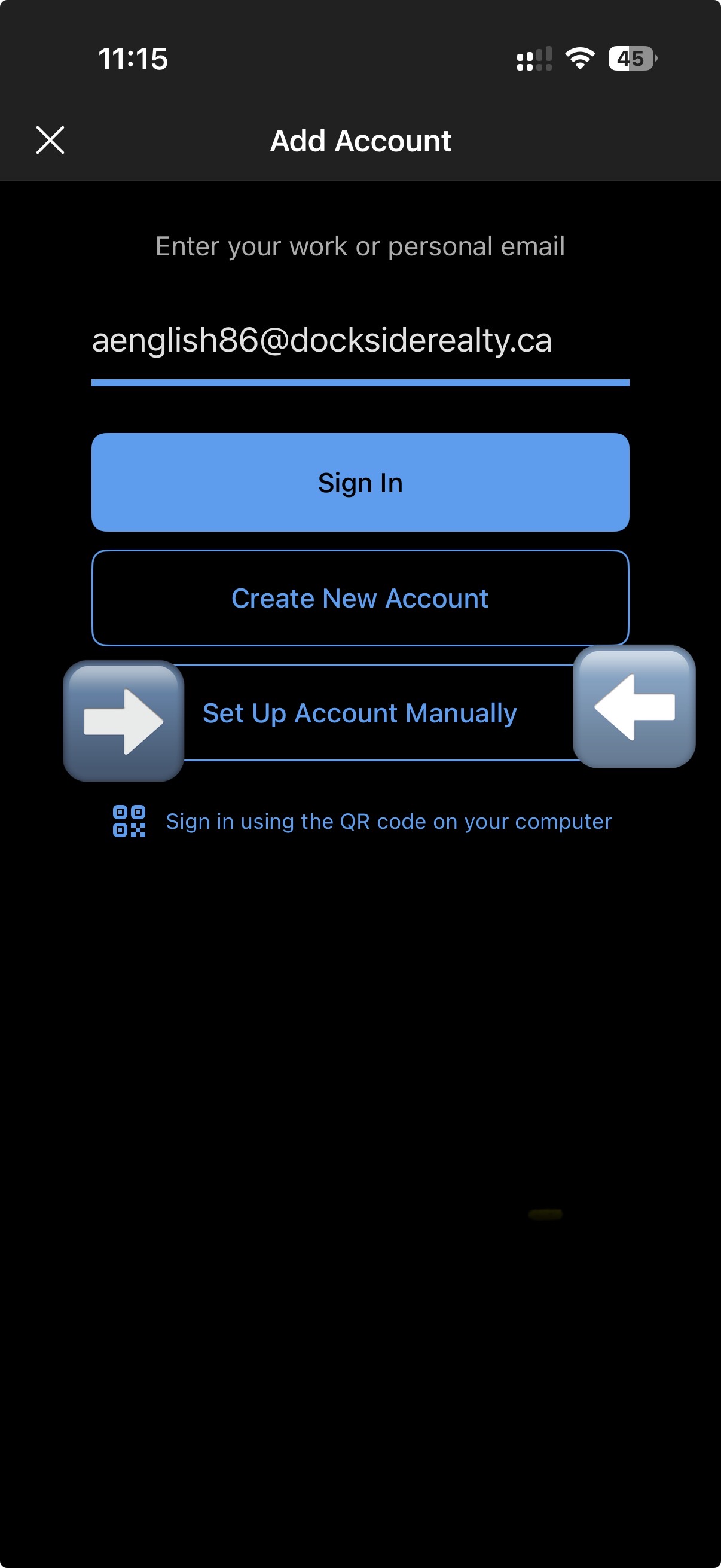
Step 2: Outlook may still thinks you are using google, so it will bring up the google sign in page. Click the X to close out of that login screen, and then click: Set Up Account Manually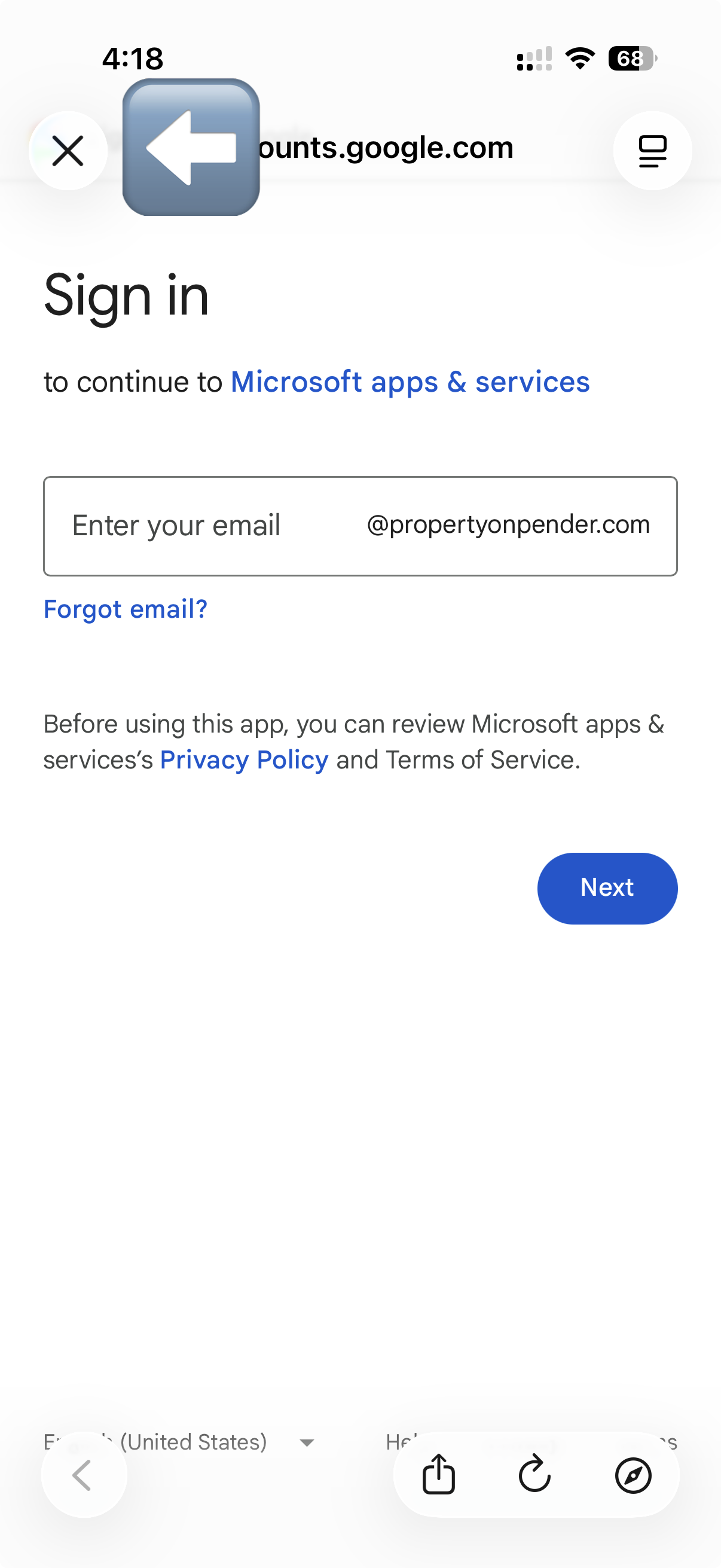
Step 3: Select Exchange from the next screen as shown below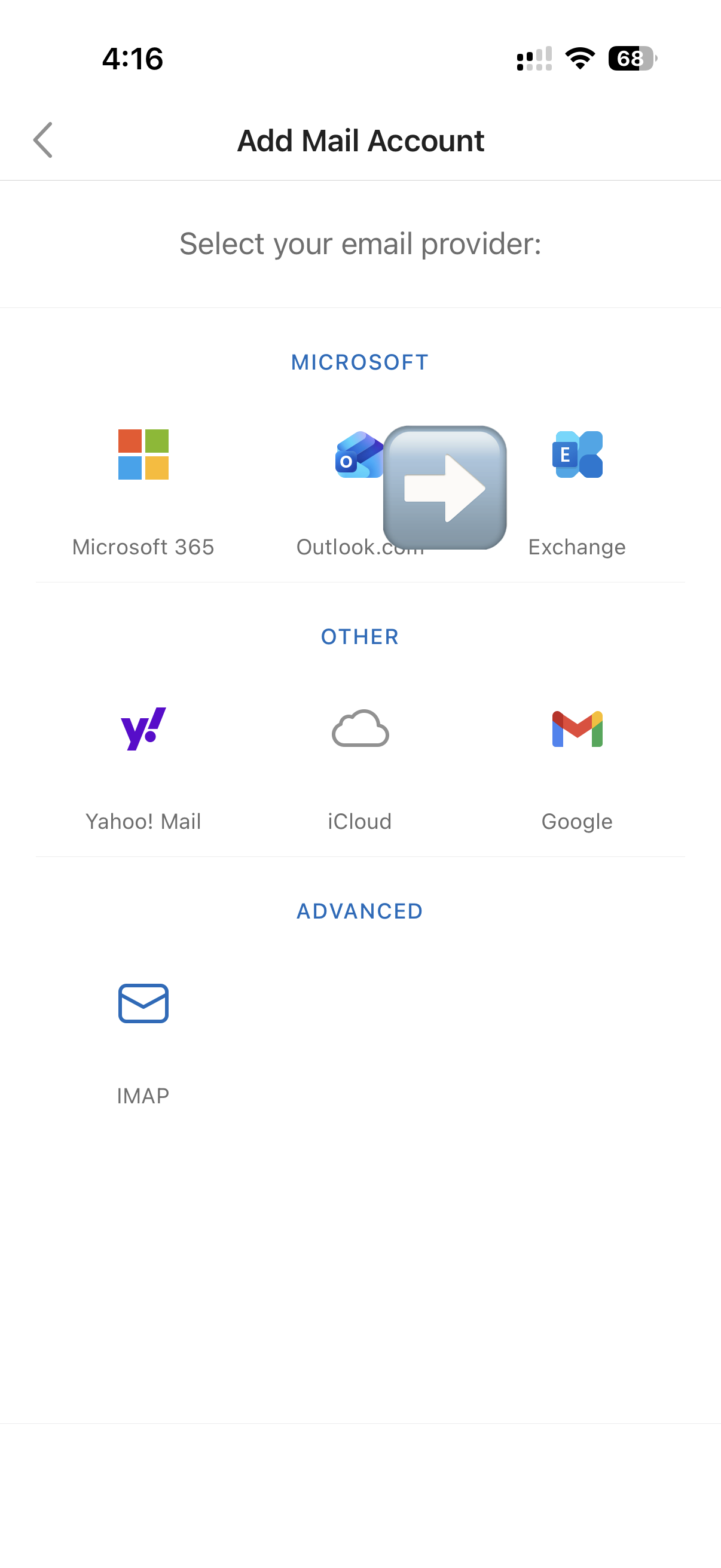
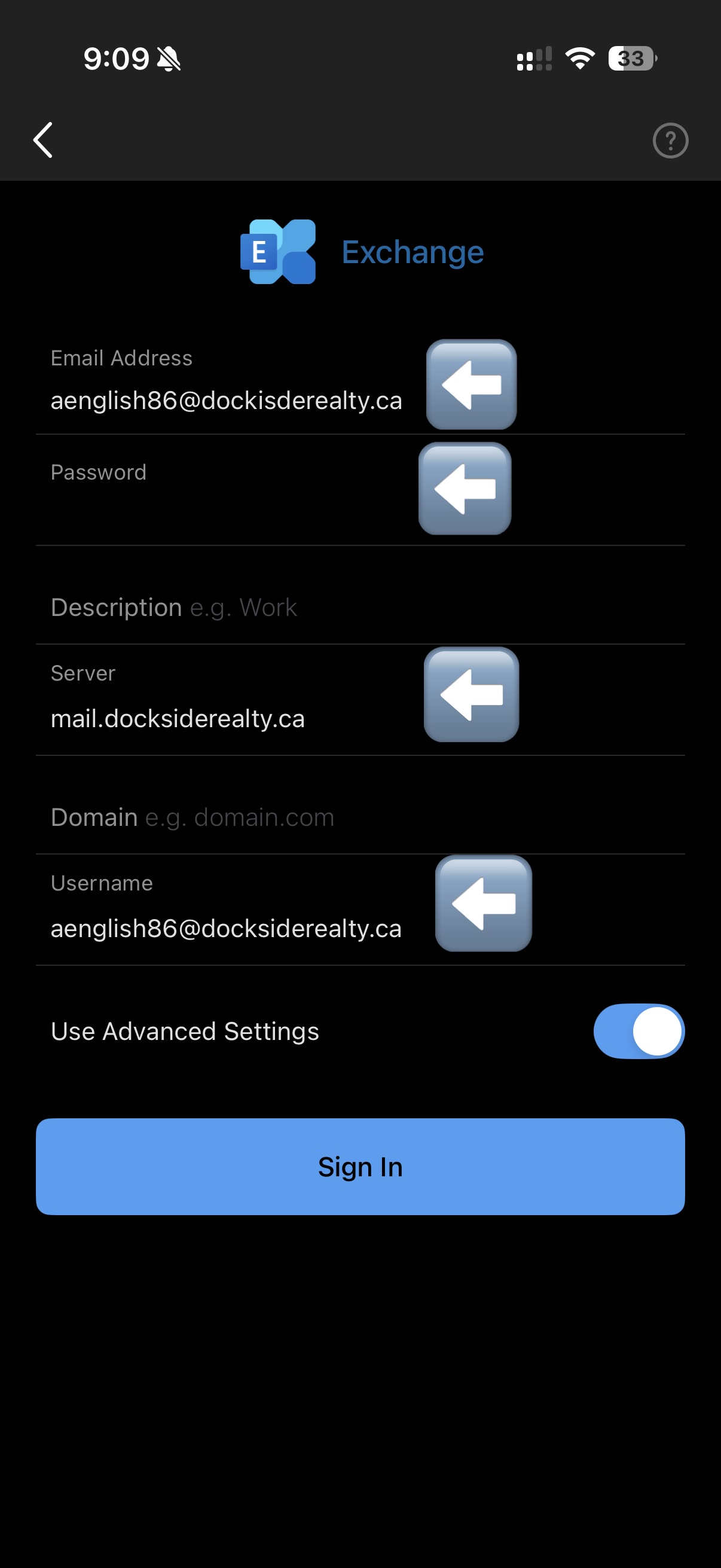
Step 4: Enter the following information:
Your dockside email address
Your password
Server: mail.docksiderealty.ca
Username: This will be your email address
The click sign in - it will take up to a minute for this process to complete
Thats it! Your account will sync with your phone, but can take a bit depending on the size of your inbox.