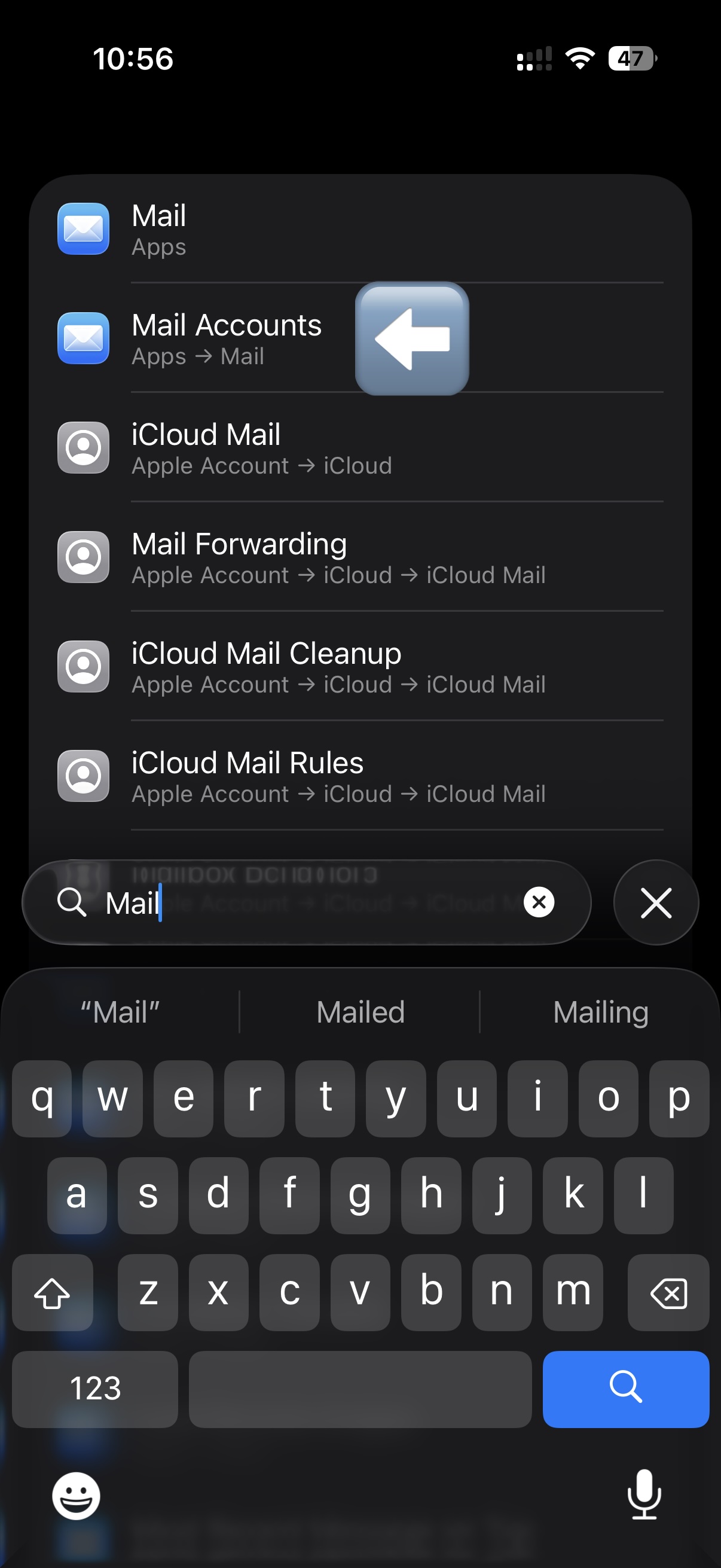
Step 1: Go to settings, and then search for Mail. Click Mail Accounts (on an iPhone or Android). Use Add account on a desktop
Step 2: Enter your dockside email address, then click next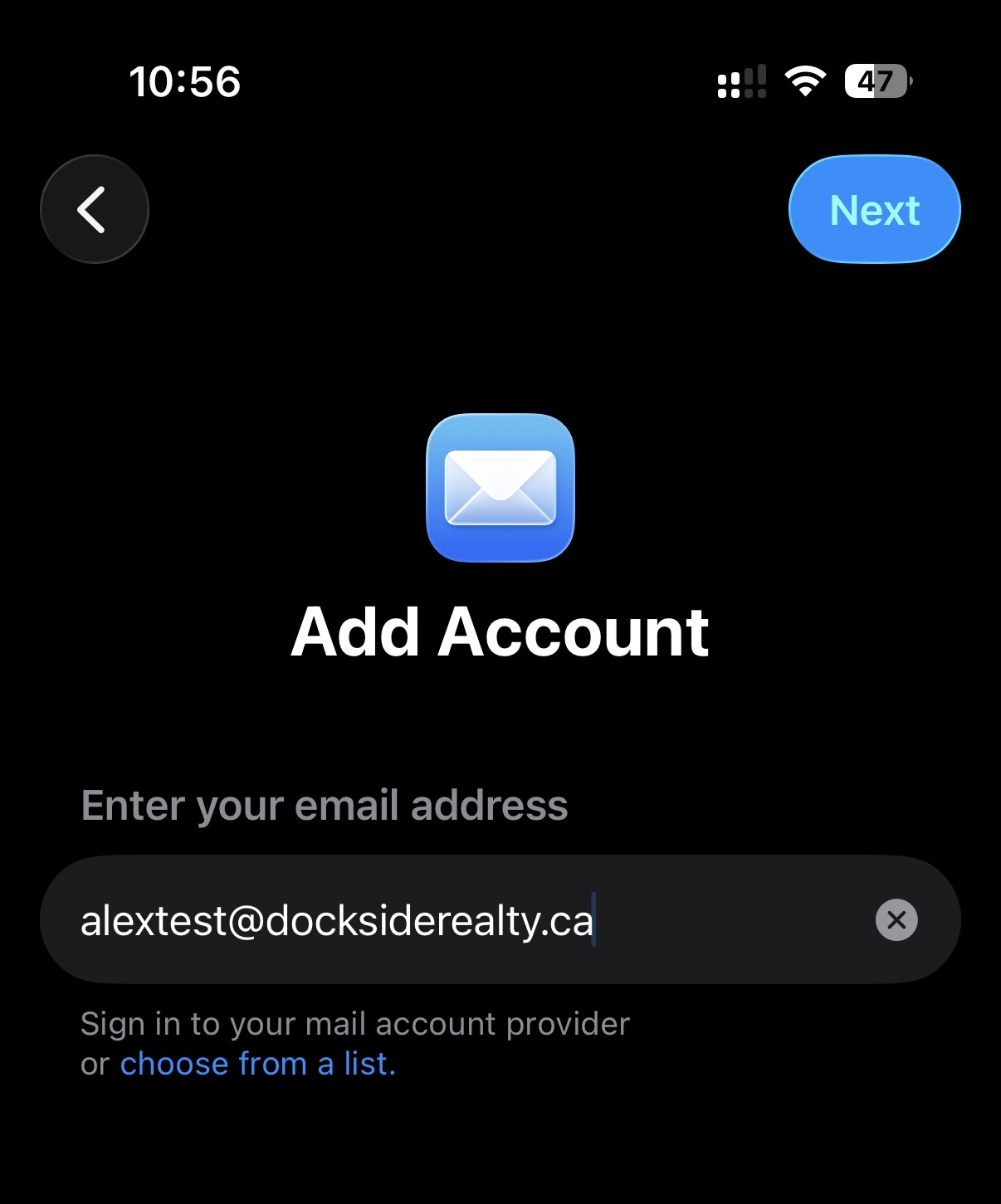
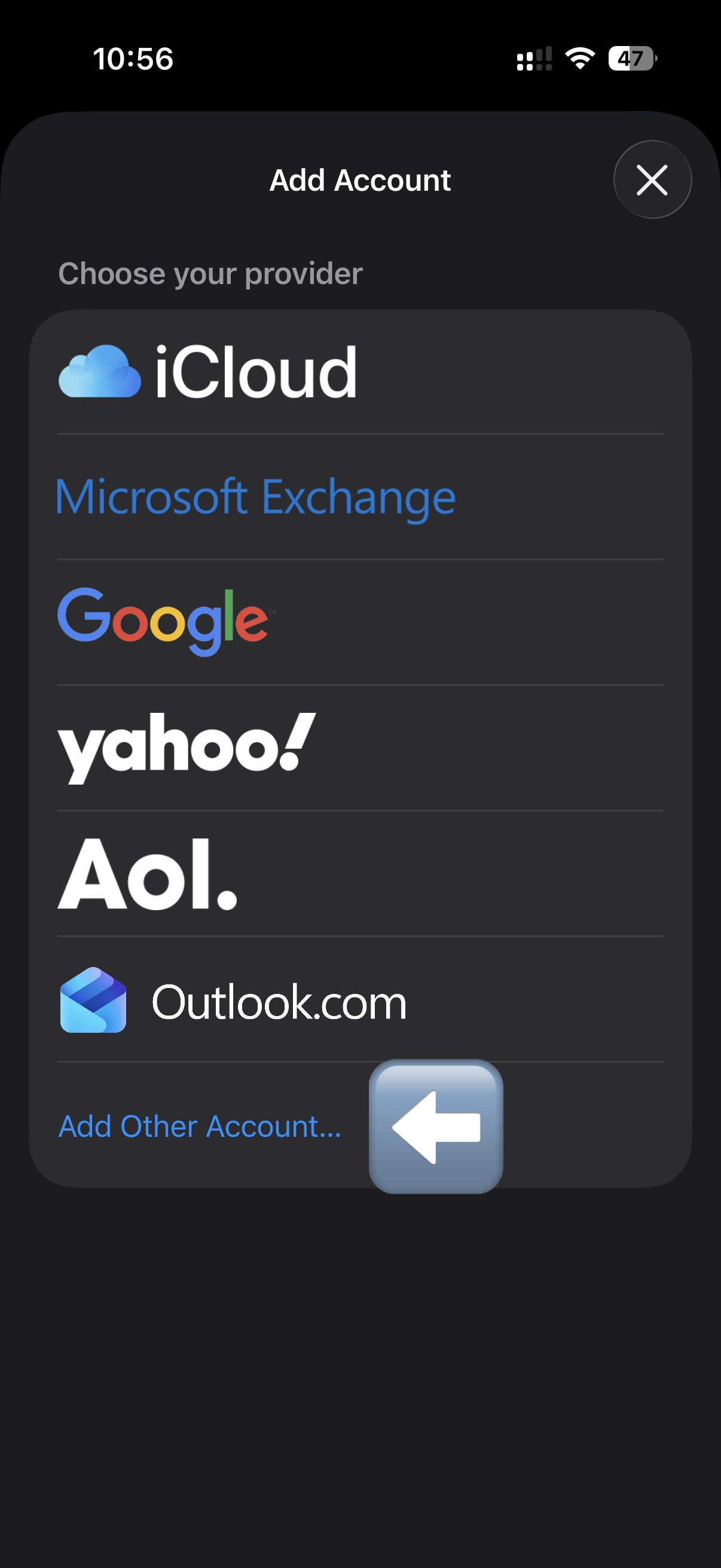
Step 3: Click Add Other Account
Step 4: Select Mail Account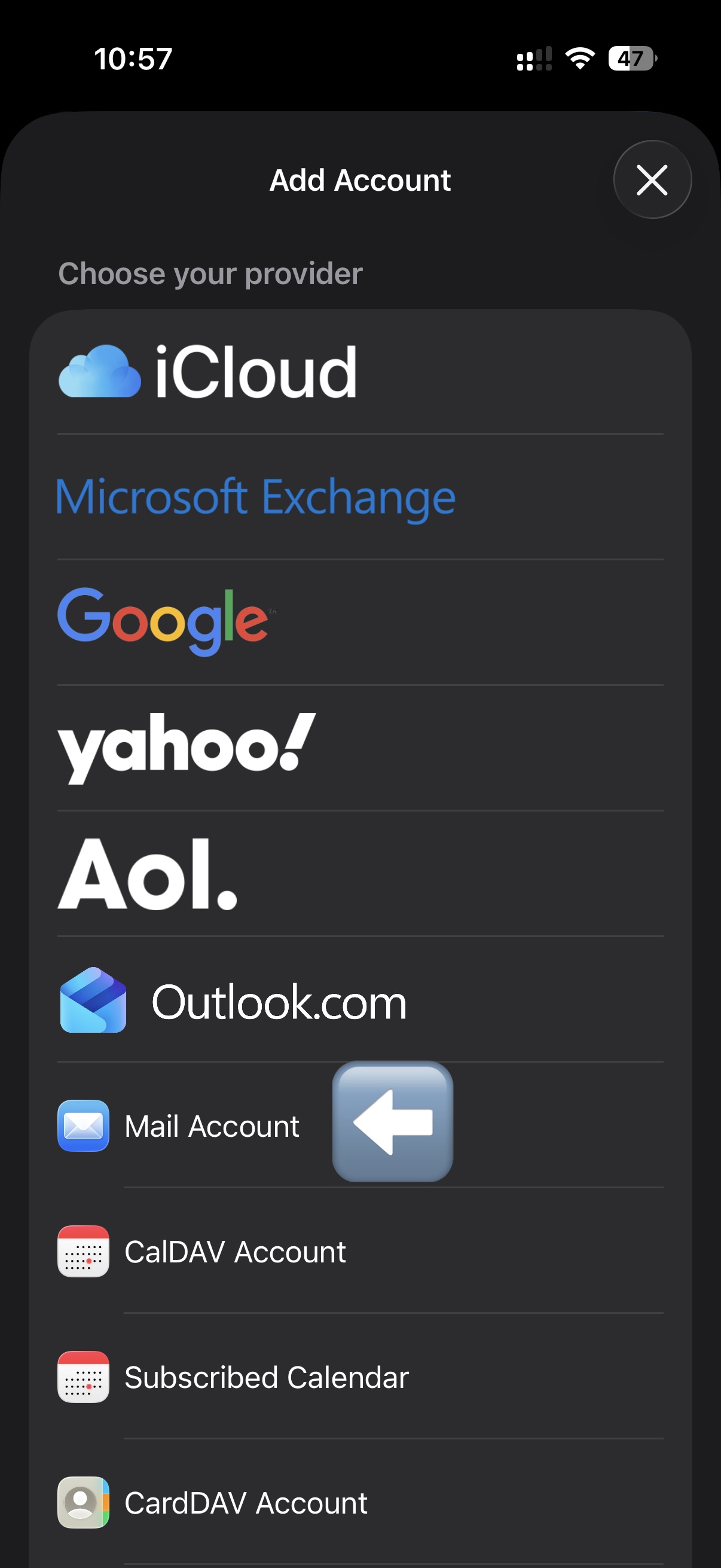
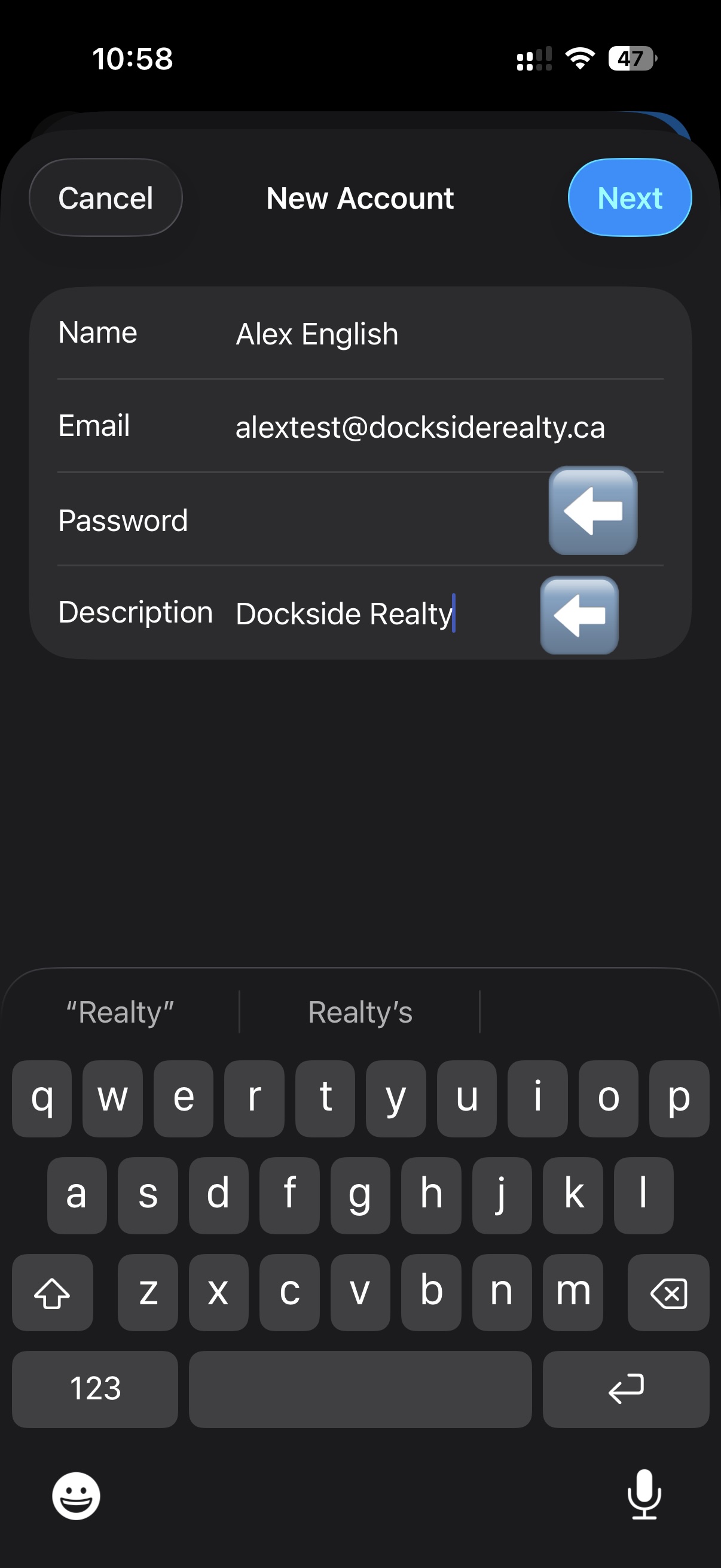
Step 5: Input your full name, email address (if its not already populated), your password, and the description of the account, then click next
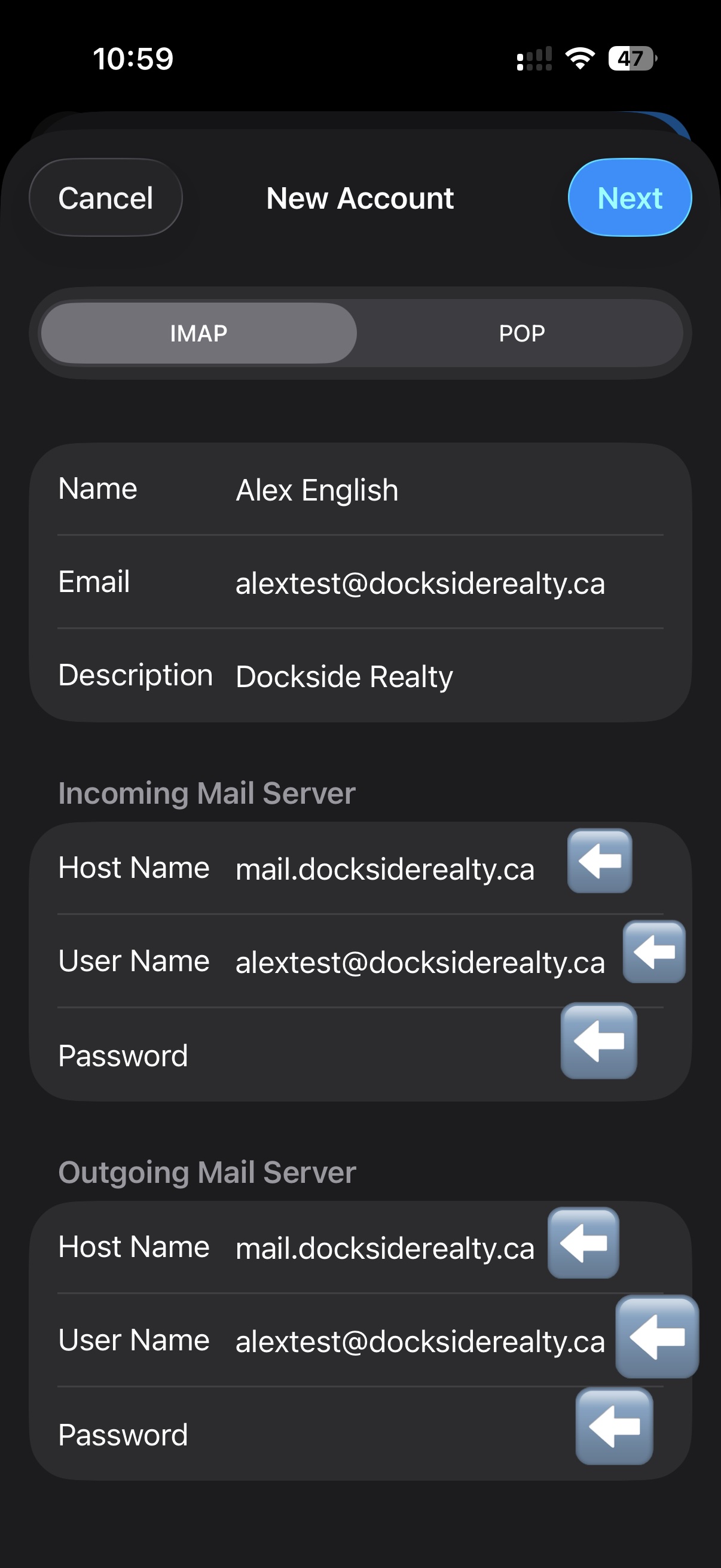
Step 6: Enter the following information (it seems like a lot, but it goes quick)
Incoming Mail Server:
Host Name: mail.docksiderealty.ca
Username: your dockside email address
Password: your email password
Outgoing Mail Server:
Host Name: mail.docksiderealty.ca
Username: your dockside email address
Password: your email passwordClick Next
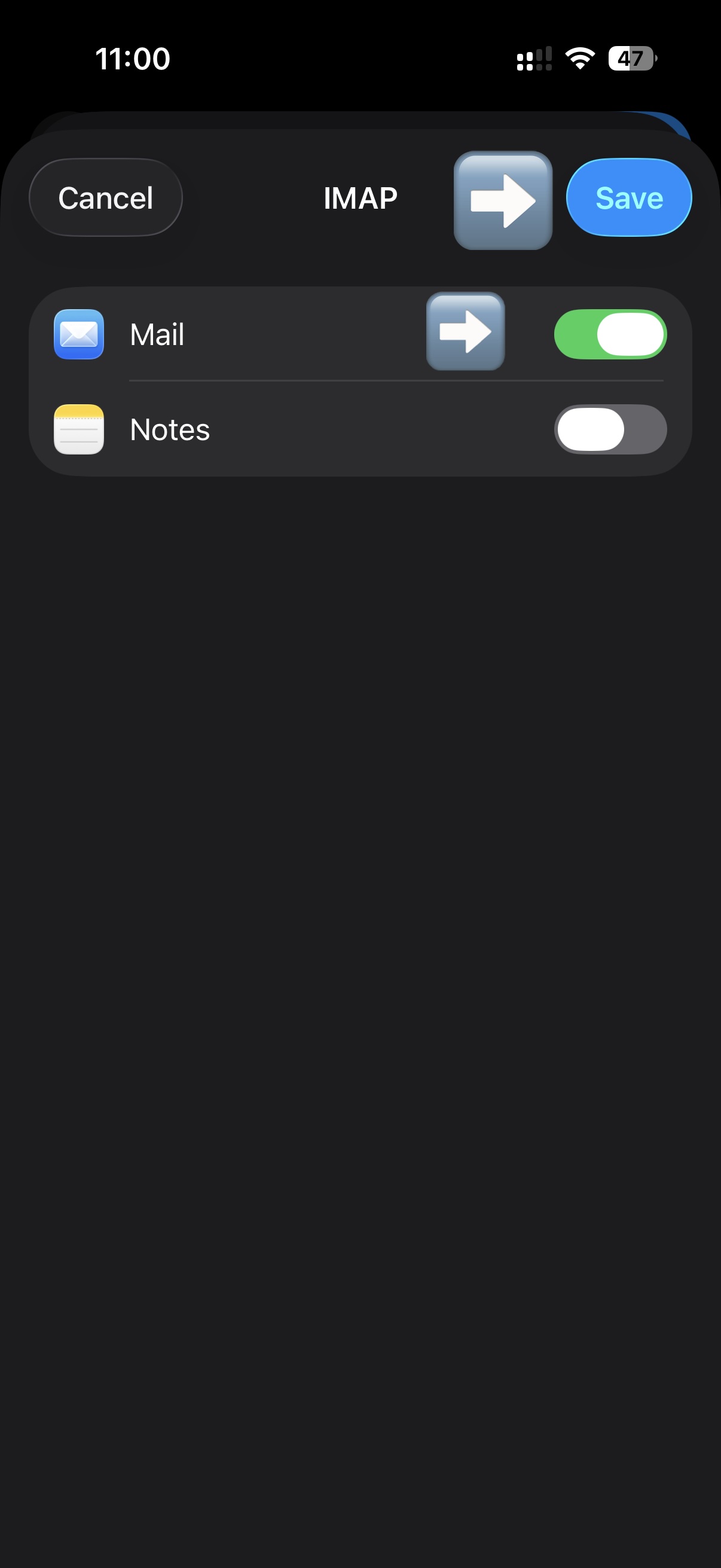
Step 7: Make sure Mail is selected, do not select notes. If notes is selected, click the button so its grey, not green. Then click Save. It may take a minute for the account to add.